Find the files that are slow to load
Preview Needs a recording that has file loads
Which pictures, models and sounds make your game slow to start or heavy to run? The performance page can rank your game's files by how hard they were to load, so you know what to shrink first. This page explains what you see and how to use it.
Can I use it today?
Partly. Be clear about this before you rely on it:
| State | |
|---|---|
| The Asset load cost section of the performance page | Available (preview) |
| Opening a recording that already contains file loads | Works. Try the demo recording (made-up data) |
Filling it automatically while you test your own game with vapour test |
Not yet. Nothing records file loads from a running game today, so the section says "No recorded assets" |
| Unity games | Not tested |
So for now it is a feature to be aware of and to try with the demo, not something your own game will fill in by itself.
What you see
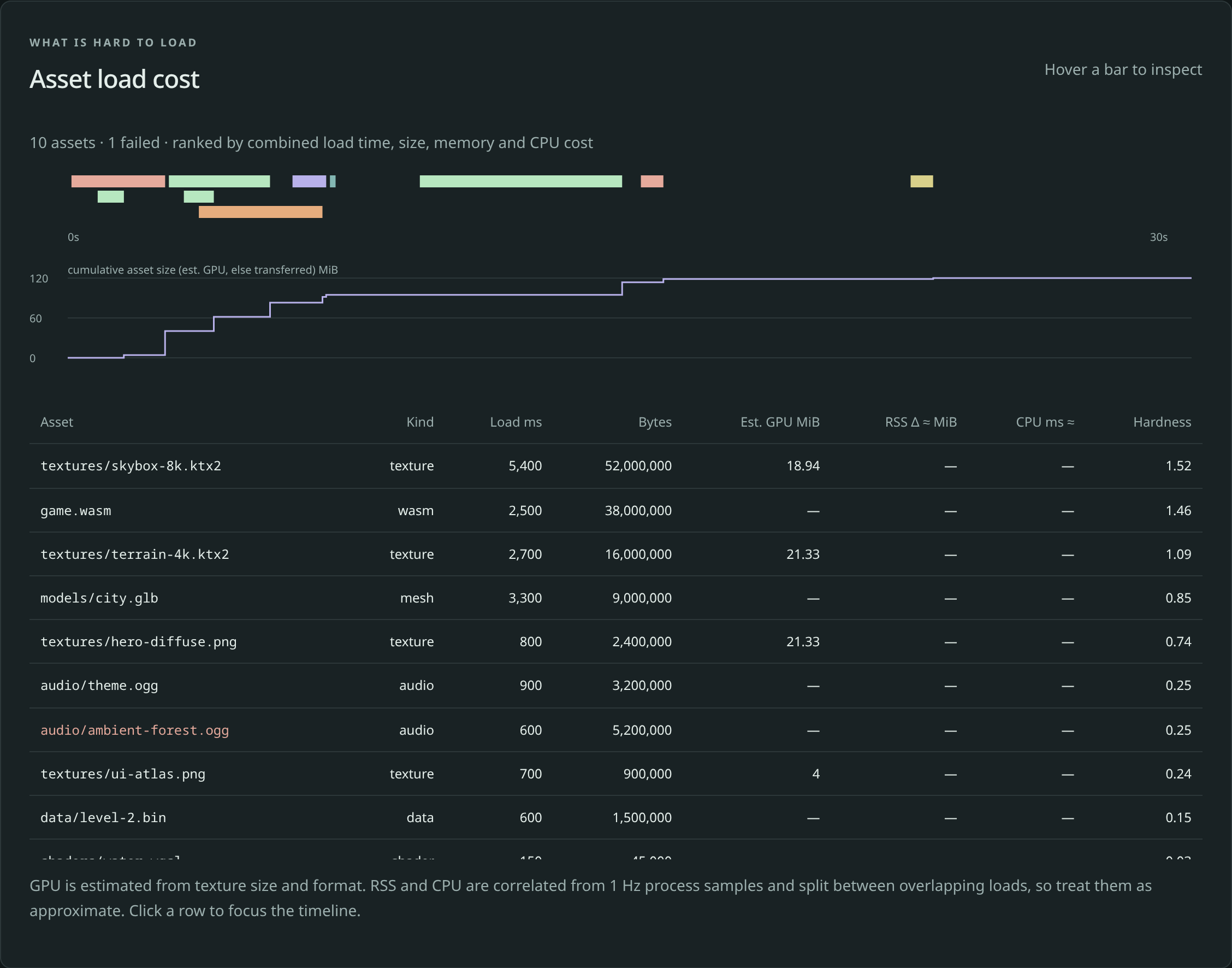
The demo recording: made-up data for ten files, one of which failed (shown in red).
- The coloured bars show when each file loaded and for how long. Overlapping loads are stacked. The colours are by kind: textures green, models orange, sounds purple, shaders teal, code red, data yellow. Hover a bar to see its name, time and size.
- The step line is the running total of file size. A big step is a big file arriving.
- The table lists every file, hardest first. Click a column heading to sort by it. Click a row or a bar to zoom the timeline onto that load.
- A file that failed to load has its name in red.
| Column | What it means |
|---|---|
| Asset | The file's name |
| Kind | Texture, model (mesh), sound (audio), shader, code (wasm), data or other |
| Load ms | How long it took to load |
| Bytes | How big the download was |
| Est. GPU MiB | For pictures: roughly how much of your graphics card's memory it takes |
| RSS Δ ≈ MiB | Roughly how much more memory the game used while this loaded |
| CPU ms ≈ | Roughly how much processor time it used |
| Hardness | One score that combines all of the above, from 0 to 4 |
The columns marked ≈ are rough estimates, and the page says so. A dash (—) means that number was not recorded.
How to use the ranking
- Start at the top of the table: those files cost the most.
- A huge picture is usually the easiest win. A large "Est. GPU MiB" with a small download means a big picture that compresses well but still fills the graphics card.
- Click a row to jump to that moment on the timeline. If the game also stuttered then, you have found a likely cause. See Understand your game's performance.
- Shrink or compress that one file, test again, and compare.
Hardness only compares the files in one recording with each other. A score of 4 means that file was the worst in every category. It says nothing about files in other recordings.
Reports
When a recording has file loads, the report also names the ten hardest files, so they appear in the written analysis too.
For tool builders
How the file-load records are laid out, and how the estimates are worked out, is described in the profiler's format document. See also Export and validate dumps.