Godot template
Preview Godot 4
From an empty Godot starter folder to a game on Vapour. If you have not yet, read the templates overview first.
1. Make the folder
vapour login --token vpr_...
vapour template godot "My Game"
cd my-game
You now have an empty starter with your settings file and store page files.
2. Add your Godot game
You need Godot 4 and its web export templates (in the editor: Editor → Manage Export Templates). The editor and the templates must be the same version.
Either:
- Copy your existing Godot project into this folder, or
- Create a new project in Godot, then copy
vapour.tomland thestorefolder into it.
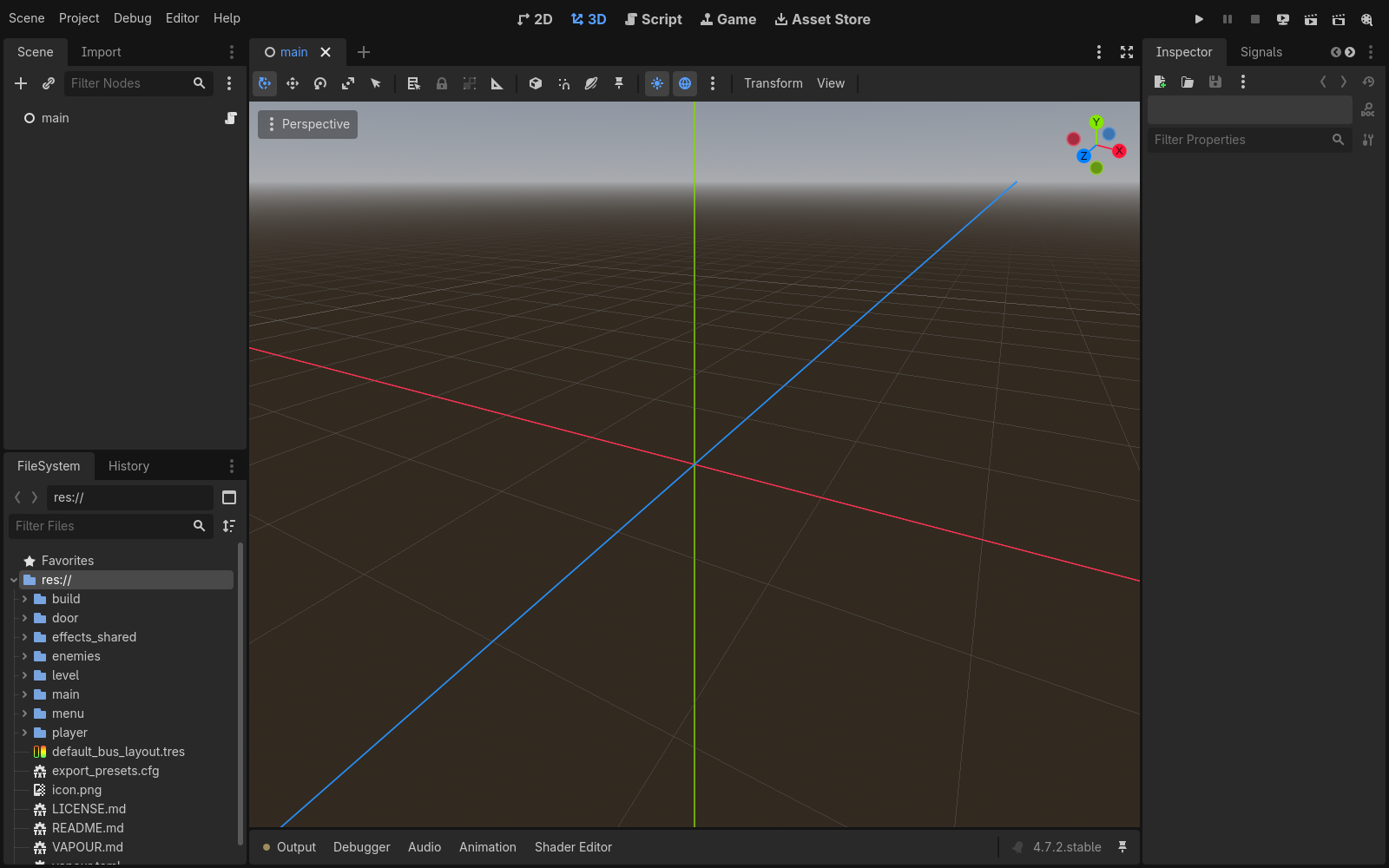
The Godot editor, shown here with the sample game from the Godot tutorial.
3. Set up the web export
Godot only exports what an export setting describes. Open Project → Export…
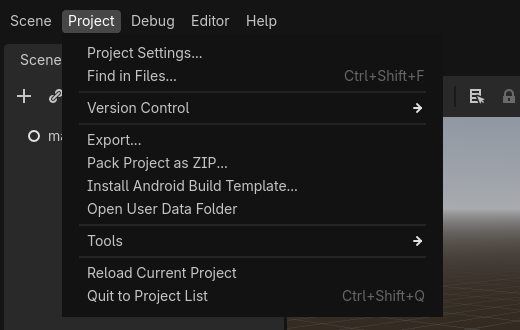
Click Add…, choose Web, and keep the name Web. Leave Thread Support off to begin with.
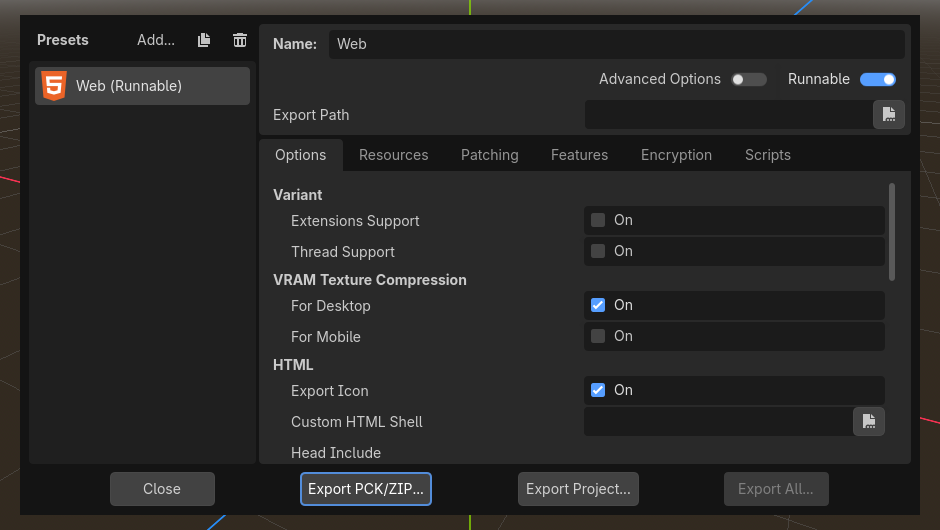
The export window, from the sample game.
Do not forget to keep the export setting in your project. It is saved in a file called
export_presets.cfg. Some Godot.gitignorefiles hide it, and then your build fails on other computers and in CI. The Godot template does not hide it.
4. Make the browser version
From the editor, Export Project into the build/web folder and name the file index.html. Or from the command line:
vapour build
5. Try it
vapour test
Your game opens in a browser with a live speed counter. See Understand your game's performance.
6. Publish
vapour publish --dry-run
vapour publish
The first command tells you the size and checks everything. The current upload limit is 512 MiB, and a Godot game's data file is usually the biggest part.
Want it to work on phones?
You can add on-screen sticks and buttons. The Godot tutorial shows how, step by step, with a real game.